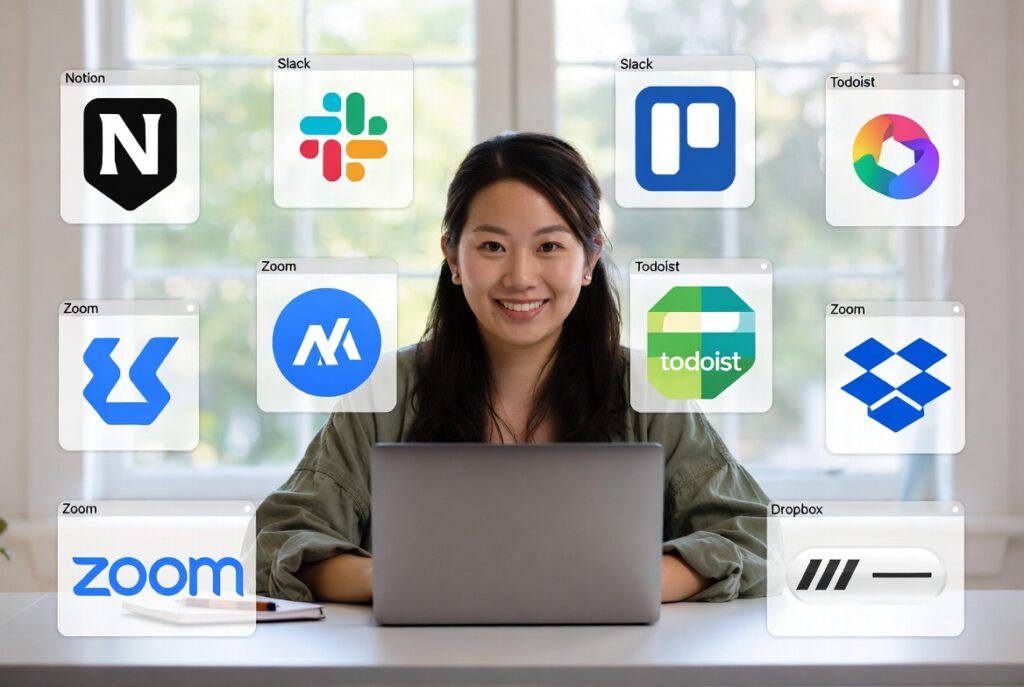
Starting remote work feels a bit like moving to a new city. Everything is unfamiliar, you don’t know where anything is, and you’re not quite sure how things work yet. The difference is that instead of learning bus routes and finding the best grocery store, you’re figuring out which apps help you work efficiently and which ones just clutter your phone and laptop.
I remember my first week of remote work. I had about fifteen different apps installed because every blog post I read said they were “essential.” Half of them did basically the same thing, and I spent more time switching between apps than actually working. It was chaos.
Here’s what we’ve learned after years of remote work and talking to hundreds of other remote professionals: you don’t need dozens of apps. You need the right apps for your specific work style and role. This article will walk you through the genuinely essential tools, organized by what they actually do, so you can build a toolkit that makes your work easier instead of more complicated.
Communication Tools
Remote work lives and dies on communication. Unlike an office where you can just turn to your colleague and ask a quick question, remote work requires intentional communication through the right channels.
Slack has become the default team communication tool for most remote companies. It organizes conversations into channels by topic, team, or project, making it easy to follow what matters to you without drowning in irrelevant messages. You can send direct messages, share files, and integrate it with dozens of other work tools. The mobile app ensures you can stay connected even when away from your computer. For Nigerian remote workers, Slack works reliably even on moderate internet connections.
Microsoft Teams serves a similar purpose but is more common in companies already using Microsoft 365. It combines chat, video calls, and file sharing in one platform. If your employer uses Outlook and OneDrive, Teams integrates seamlessly with these tools.
Zoom remains the gold standard for video conferencing. The free version allows 40-minute meetings with up to 100 participants, which covers most needs when starting out. The video and audio quality remain stable even on slower internet connections, something particularly important in Nigeria where bandwidth can be inconsistent. Google Meet is a solid alternative, especially if your team uses Google Workspace.
WhatsApp might seem too casual for work, but many Nigerian remote workers and international clients use it for quick communication. The voice note feature helps when typing detailed explanations feels cumbersome, and the app works on practically every phone and connection speed.
Project Management Tools
When you work remotely, nobody can see you checking your to-do list or updating your progress. You need tools that help you stay organized and keep everyone informed about what you’re working on.
Trello uses a visual board system with cards and columns that you move around. It’s incredibly intuitive, you create a card for each task and move it from “To Do” to “In Progress” to “Done.” The free version handles everything most people need. Trello works beautifully for visual thinkers and anyone managing multiple projects simultaneously.
Asana takes a more structured approach with tasks, subtasks, deadlines, and assignments. It’s powerful for complex projects with many moving parts. The learning curve is slightly steeper than Trello, but once you understand it, Asana becomes invaluable for detailed project tracking.
Notion deserves special mention because it goes beyond simple task management. You can create databases, wikis, notes, and task lists all in one place. Many remote workers use Notion as their entire workspace, organizing everything from daily tasks to long-term goals to meeting notes. The flexibility means you can customize it exactly to your workflow.
Google Tasks integrates directly with Gmail and Google Calendar, making it perfect if you live in the Google ecosystem. It’s simpler than Trello or Asana but sometimes simple is exactly what you need.
Time Tracking and Productivity
Some remote jobs require tracking your hours, especially if you’re paid hourly or working through platforms like Upwork. Even if it’s not required, tracking time helps you understand how long tasks actually take and where your day goes.
Toggl Track is straightforward and effective. You start a timer when you begin a task and stop it when you finish. Over time, you build a picture of how you spend your working hours. The free version offers everything most people need, and the reports help you identify productivity patterns.
Clockify offers similar functionality with unlimited users and projects on the free plan. It’s particularly good for freelancers managing multiple clients who need to track billable hours separately.
RescueTime runs in the background and automatically tracks what applications and websites you use throughout the day. At the end of the week, you get a report showing exactly where your time went. This can be eye-opening. You might think you only check social media occasionally, but RescueTime shows you spent two hours scrolling Twitter. It’s accountability without manual effort.
Forest takes a different approach to productivity. You plant a virtual tree and it grows while you work without using your phone. If you leave the app to check Instagram, your tree dies. It sounds silly, but the gamification genuinely helps many people stay focused.
File Storage and Sharing
Remote work means files need to live in the cloud, accessible from anywhere and shareable with teammates.
Google Drive gives you 15GB free storage shared across Gmail, Drive, and Photos. For most remote workers starting out, this is plenty. The real power is collaboration. Multiple people can edit the same Google Doc, Sheet, or Slide simultaneously, seeing each other’s changes in real time. This eliminates the nightmare of emailing files back and forth.
Dropbox focuses purely on file storage and syncing. The free plan offers 2GB, which fills up quickly, but the syncing technology is excellent. Files you save in your Dropbox folder automatically upload and sync across all your devices.
OneDrive integrates with Microsoft Office and gives you 5GB free. If your company uses Microsoft 365, you likely have significantly more storage through your work account.
For Nigerian remote workers, consider that large file uploads can be challenging with unreliable internet. Choose a service and stick with it rather than spreading files across multiple platforms.
Password Management Tools
Remote work means logging into numerous platforms, often from different devices. Reusing the same password everywhere is asking for trouble, but remembering dozens of unique passwords is impossible.
LastPass stores all your passwords behind one master password. It generates strong, unique passwords for every site and autofills them when you need to log in. The free version covers most needs with unlimited passwords and syncing across one device type.
Bitwarden offers similar functionality with a more generous free plan that syncs across all your devices. It’s open-source, which appeals to people who care about transparency in security tools.
1Password is the premium option with the most polished interface and features. It’s not free, but many remote workers consider the ₦5,000 to ₦8,000 annual cost worthwhile for the peace of mind.
Communication Enhancement Tools
These tools make your written and verbal communication more professional and effective.
Grammarly catches spelling and grammar mistakes as you type across websites and apps. The free version handles the basics well. The premium version offers style suggestions and tone detection, but most people manage fine without it. For Nigerian remote workers writing in English to international clients, Grammarly provides helpful confidence.
Loom allows you to record your screen with your face in a small bubble, perfect for giving feedback, explaining complex ideas, or providing updates without scheduling a meeting. The free plan allows up to 25 videos of five minutes each. Many remote workers find Loom transforms how they communicate, replacing long written explanations with quick video walkthroughs.
Calendly eliminates the back-and-forth of scheduling meetings. You set your availability, share your Calendly link, and people book time with you directly. It syncs with your calendar to prevent double-booking. The free version handles most needs perfectly.
The Right Tools for Your Role
The tools you prioritize depend on your specific remote role. Virtual assistants need robust calendar and email management, so Google Workspace or Microsoft 365 becomes central. Customer support specialists rely heavily on whatever ticketing system their employer uses, plus communication tools for reaching customers.
Social media managers live in scheduling tools like Buffer or Later, design tools like Canva, and analytics platforms. Content writers need writing apps, grammar checkers, and research tools. Data entry specialists need spreadsheet proficiency and possibly specific database software.
Start with the basics that apply to everyone: one communication tool, one project management system, one file storage solution, and one password manager. Add role-specific tools as you discover you need them, not because someone said they’re essential.
Building Your Digital Toolkit
Download apps gradually as you need them rather than installing everything at once. Use each tool for at least two weeks before deciding if it works for you. What’s perfect for someone else might feel clunky for you.
Most importantly, remember that tools should make work easier, not more complicated. If you find yourself spending more time managing your tools than doing actual work, step back and simplify. The goal is productivity and peace of mind, not having the longest list of apps on your phone.
Start with the essentials, learn them well, and expand your toolkit as your remote work career grows. The right apps make remote work feel less overwhelming and more manageable, giving you the structure and support you need to succeed from anywhere.